Home › Guides › Medical ID on your phone
Medical ID on Your Phone: How to Set It Up on iPhone & Android
Updated: October 4, 2026 · by PrettyLights Software, the team behind Nurelio
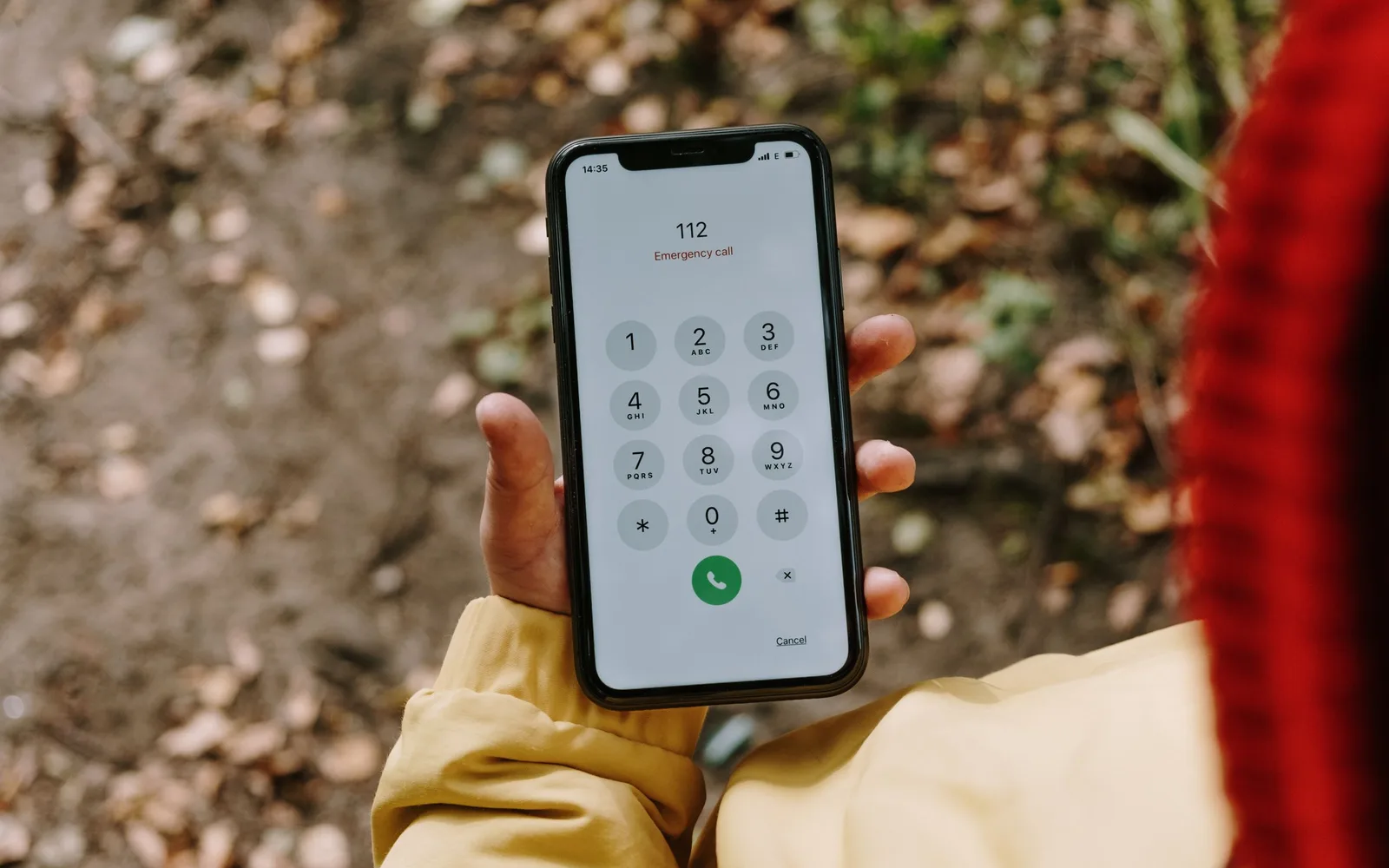
When someone is unresponsive after a fall or a collapse, paramedics always ask the same questions: Which medications does this person take? Any allergies? Pre-existing conditions? Who can we call? The answers are often on the smartphone — but behind the lock screen. That is exactly what Medical ID is for: both major systems, iPhone and Android, can store selected health details so that first responders can see them without unlocking, via the emergency screen. Setting it up takes five minutes — yet most people never have, and many don't even know their phone can do it. This guide walks through both systems step by step and explains how Nurelio helps make sure the details aren't just entered once but stay up to date — because a Medical ID with an outdated medication list can confuse more than it helps when it matters.
What belongs in a Medical ID?
The rule of thumb: everything that affects emergency care, and nothing beyond that. That means your blood type, allergies (especially to medications such as penicillin), pre-existing conditions like diabetes, epilepsy or heart disease, your current medication list — blood thinners, for example, matter immediately with any injury — and an emergency contact with a phone number. Health insurance details also speed up hospital admission. What doesn't belong: diagnoses with no emergency relevance, and anything you wouldn't want visible on the lock screen of a lost phone — Medical ID is deliberately meant for strangers' eyes.
iPhone: Medical ID in the Health app
Apple calls the feature “Medical ID”; it lives in the preinstalled Health app:
- Open the Health app (Apple Health).
- Tap your profile picture in the top right, then choose “Medical ID”.
- Tap “Edit” and fill in blood type, allergies, medications and emergency contacts.
- Turn on “Show When Locked” — this is the switch that matters.
First responders then open it from the lock screen: tap “Emergency”, and the “Medical ID” entry appears next to the keypad. Paramedics know this route and check it routinely. People saved as emergency contacts are also notified when an emergency call is placed from the iPhone.
Android: emergency information in Settings
Android has the same feature under the name “Emergency information” — in a slightly different place depending on manufacturer and Android version:
- Open your device Settings.
- Tap “Safety & emergency” (on some devices “Safety and emergency” or “SOS & emergency”).
- Open “Emergency information” or “Medical info” and fill it in; you can add emergency contacts there as well.
Access for first responders works like on iPhone: tap “Emergency” on the lock screen, and the “Emergency information” entry appears. On Samsung, Xiaomi and other brands the menu names can differ slightly; searching Settings for “emergency” reliably finds the right place.

The weak spot: it goes out of date without anyone noticing
The real problem isn't setting it up, it's keeping it current. The system Medical ID is a static text list: if a medication is stopped, a dose changes or something new is prescribed, it knows nothing about it. With several long-term medications in particular, the list is outdated after one or two doctor's visits — and first responders end up relying on wrong information. On top of that, neither Apple nor Google lets apps write to the system Medical ID automatically. So no medication app can keep it in sync for you — Nurelio included. What a good app can do is make updating so easy that it actually happens.
How Nurelio complements Medical ID
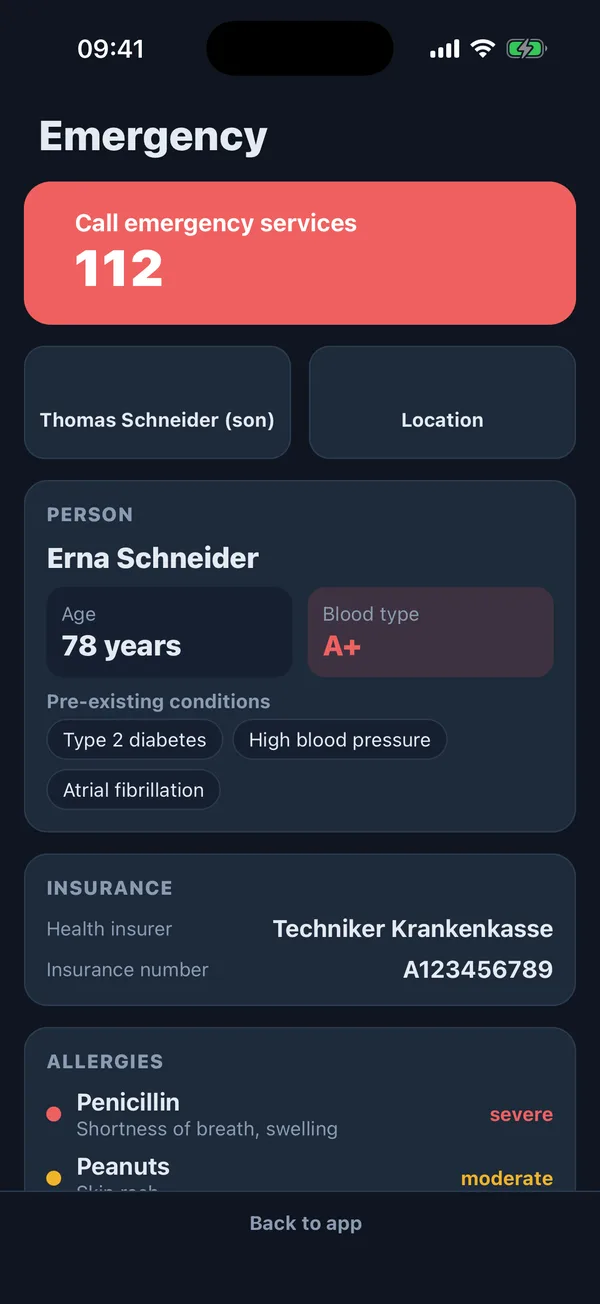
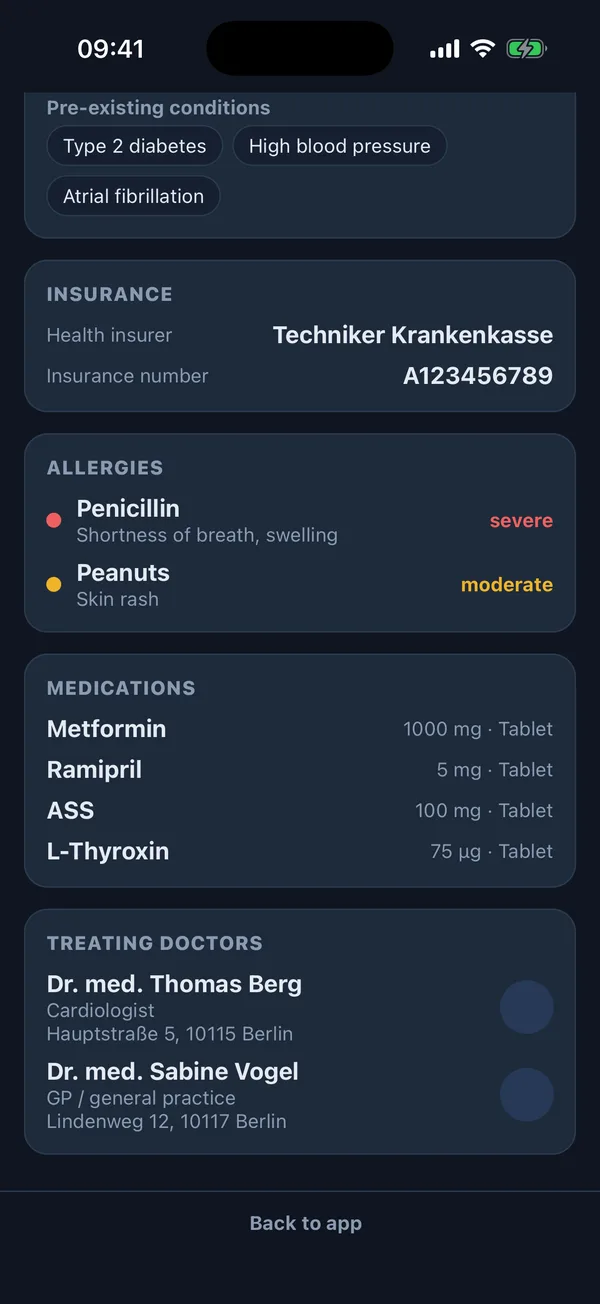
Nurelio keeps its own emergency pass in the app, fed directly from the data you already maintain: blood type and pre-existing conditions from your health profile, allergies with severity and reaction, your current medication list with dosages — automatically in line with your dosing schedules — plus emergency contact and health insurance details. For the system Medical ID there is a guided route: Nurelio takes you to the right place in Settings and provides all your emergency data as copyable text to paste in. When your medication changes, the current list in the app reminds you to update the system pass too.
For family members connected through family sharing, there is also a companion emergency view: one screen with the patient's details for paramedics, a call button with the right number for the configured country (911 in the US, 112 across Europe), your own location for the dispatcher, and the treating doctors. Why does this data live on the companion's own phone? Because in an emergency you often can't get into the patient's phone at all — it's locked, face recognition doesn't work on an unconscious person, and you don't know the PIN. A family member standing next to them and calling for help still has blood type, allergies and medications at hand immediately — on their own device, without having to unlock someone else's. One privacy detail: if you hand your phone to a paramedic, you don't need to worry — the emergency view can't be left for the rest of the app without a fingerprint or PIN. And like everything shared in Nurelio, this data is end-to-end encrypted.
Try Nurelio
Emergency pass, reminders and medication list — the basic version is free forever, with no ads and no account required. Nurelio is available for iOS and Android.
Download on the App Store Get it on Google Play
Learn more: Privacy · all guides